
Facebook Business Professional
Module 1 · Facebook Business Fundamentals · Lesson 1 of 1
Facebook Business Fundamentals
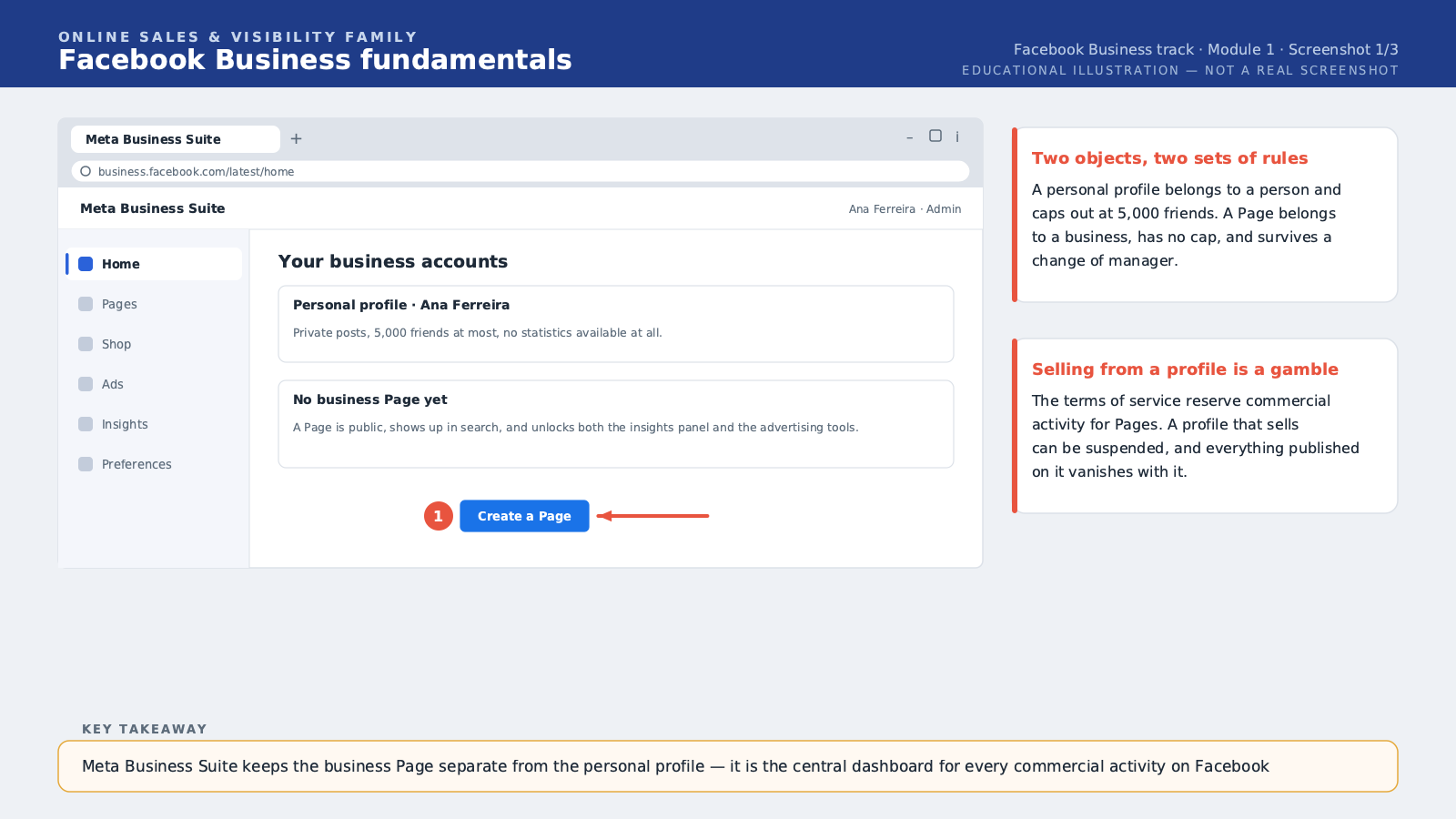
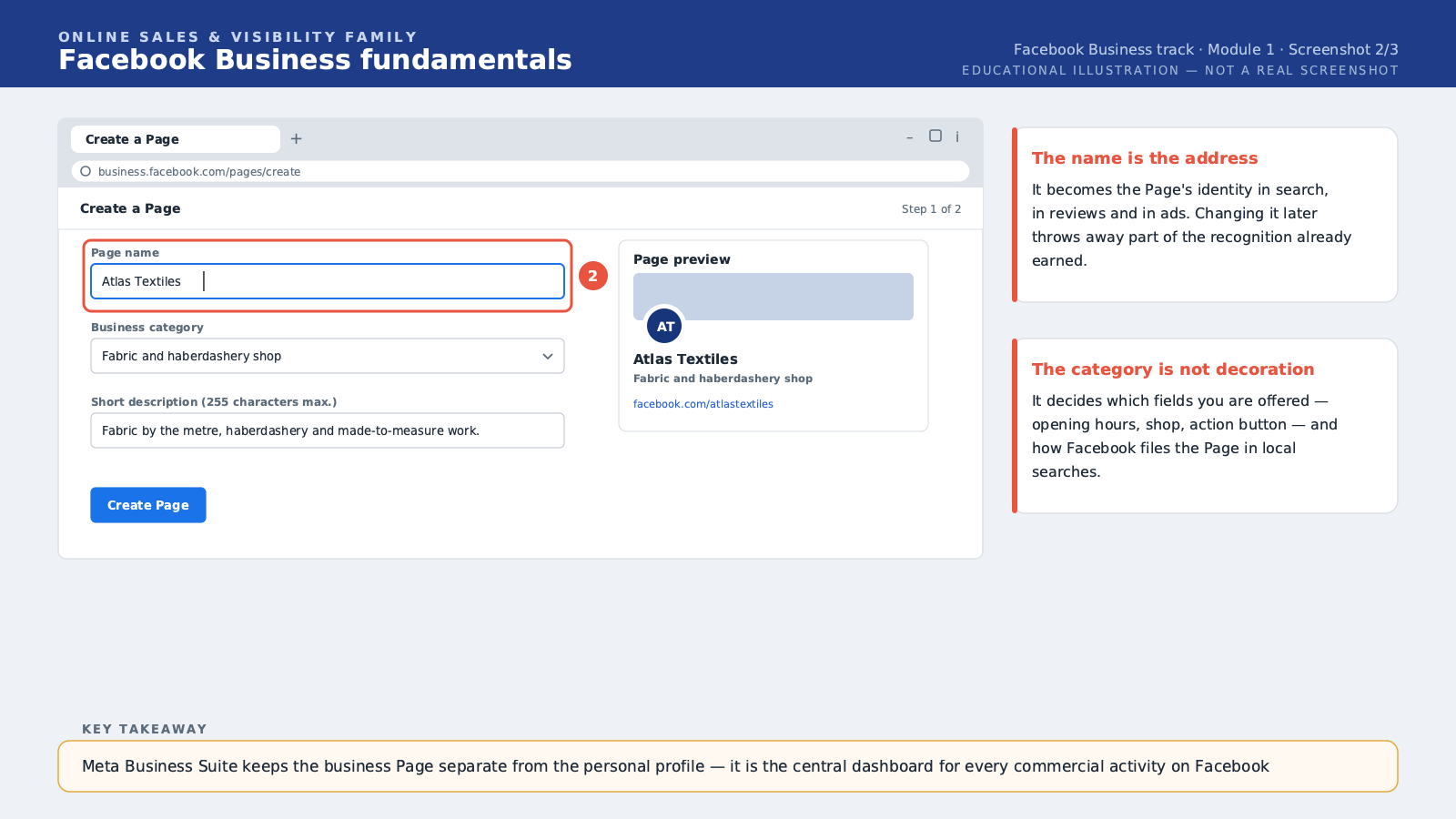
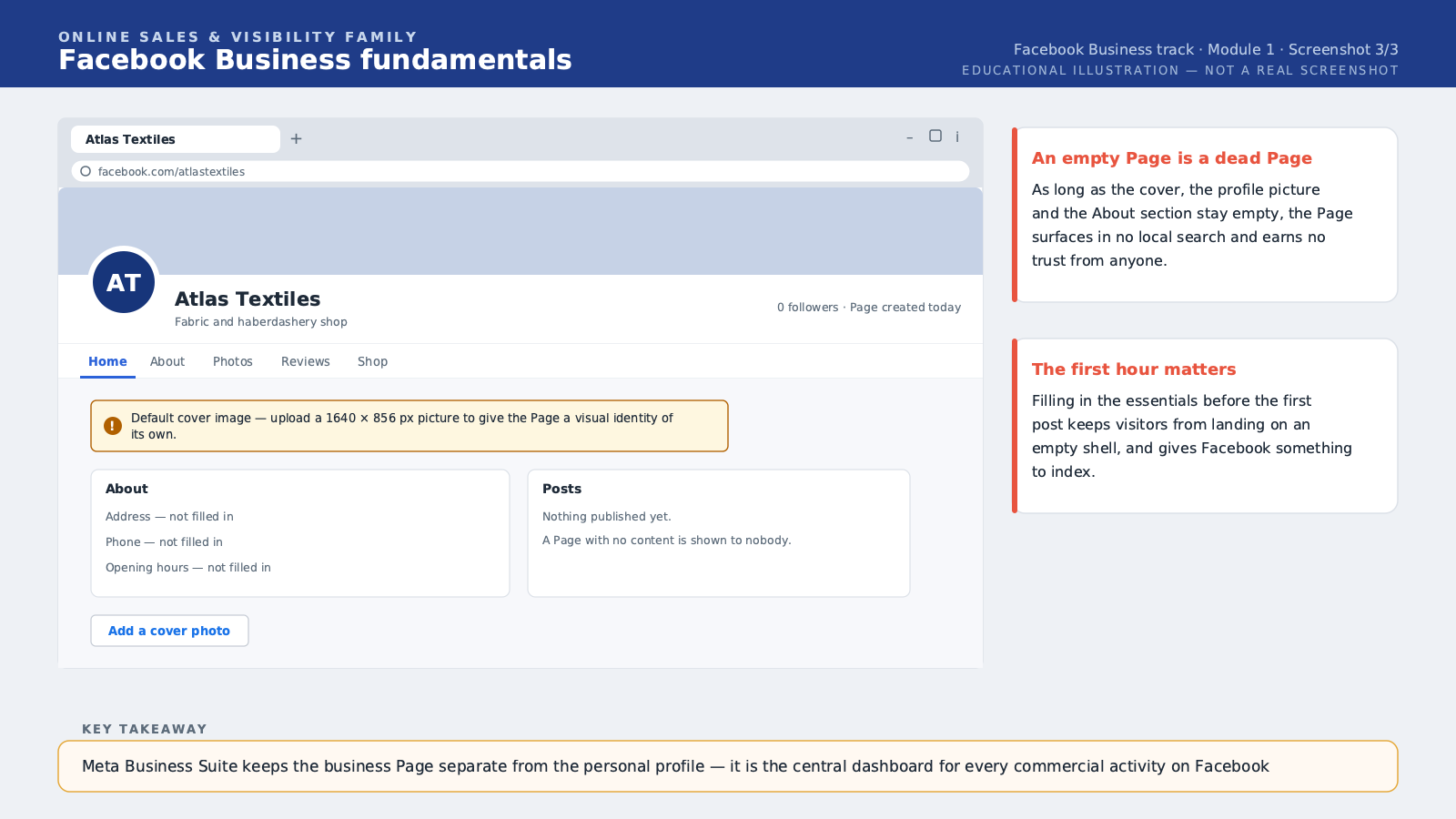
Hello, and welcome to the first module of the Facebook Business Professional course. Today we lay the groundwork. By the end of this lesson, you will know the difference between a personal profile and a business page on Facebook, and you will know how to create and set up your first page using Meta Business Suite. Let's start with a simple question. Why does it matter to separate your personal profile from your business page? Many shop owners, here in Europe and elsewhere, start out by posting photos of their products directly on their personal Facebook profile. That works, a little, at first. But limits show up quickly. A personal profile is capped at five thousand friends. A business page has no follower limit at all. A personal profile cannot show opening hours, a direct contact button, or an online shop. A business page can. And most importantly, a personal profile mixes your private life — family photos, friends, personal memories — with your business activity. That is neither professional for your customers, nor comfortable for you. Here is a term you will hear often: Meta Business Suite. Meta is the name of the company that owns Facebook and Instagram. Business Suite is the management tool Meta provides for professionals. Think of it as a central dashboard: from this tool, you manage your Facebook page, your linked Instagram account if you have one, publish content, reply to messages, and later, track your statistics and manage your ads. Remember this name: Meta Business Suite. It is where you will spend most of your time in this course. Now let's walk through how to create a business page, step by step. Step one: you must be signed in with a personal Facebook account. This is required, even though that personal account will then stay in the background, invisible to your customers. It is simply the key that lets you administer your page. Step two: you choose a page name. This is an important choice. The name should be clear, recognizable, and ideally identical to the name your customers already use for your business. For our fictional fabric shop that we will follow throughout this course, we will use the name "Ana Wax." Simple, memorable, easy to find in a search. Step three: you choose a business category. Facebook offers a list of categories — retail store, restaurant, beauty salon, local service, and many others. Choose the most precise category possible: it helps Facebook recommend your page to the right people, and it automatically displays useful fields, like opening hours for a restaurant. Step four: you add a profile picture and a cover photo. The profile picture is often your logo, or a clear photo of your shop. The cover photo is a wider image that can show your products, your team, or your shop's interior. Practical tip for limited internet connections: prepare these photos ahead of time, on your phone, at decent quality but not too heavy, so the upload doesn't take too long or use too much data. Once these four steps are done, your page exists. It is still incomplete — we will build it out in Module 2 — but it exists, and it is already different from your personal profile. One last important point for this module: who can administer a page? A business page can have several administrators. This is very useful if you work with an assistant, or if you are training someone to take over later. Each administrator signs in with their own personal account, but all of them can manage the same page. That is one of the big advantages over a simple personal profile, which can only be used by one person at a time, with a single password. To sum up this module: a business page is different from a personal profile, it offers more tools and no follower limit. Meta Business Suite is the central dashboard for managing that page. And creating a page takes four simple steps: name, category, profile picture, cover photo. In the next module, we will optimize this page in detail: contact information, customer reviews, action button. See you in Module 2.
Free preview, no account needed — the rest of this module and the following modules unlock after enrolling.
Convinced? Enroll to unlock the full course.
See pricing