
Mastering Gemini
Module 1 · Module 1 — Getting started with Gemini · Lesson 1 of 1
Getting started with Gemini
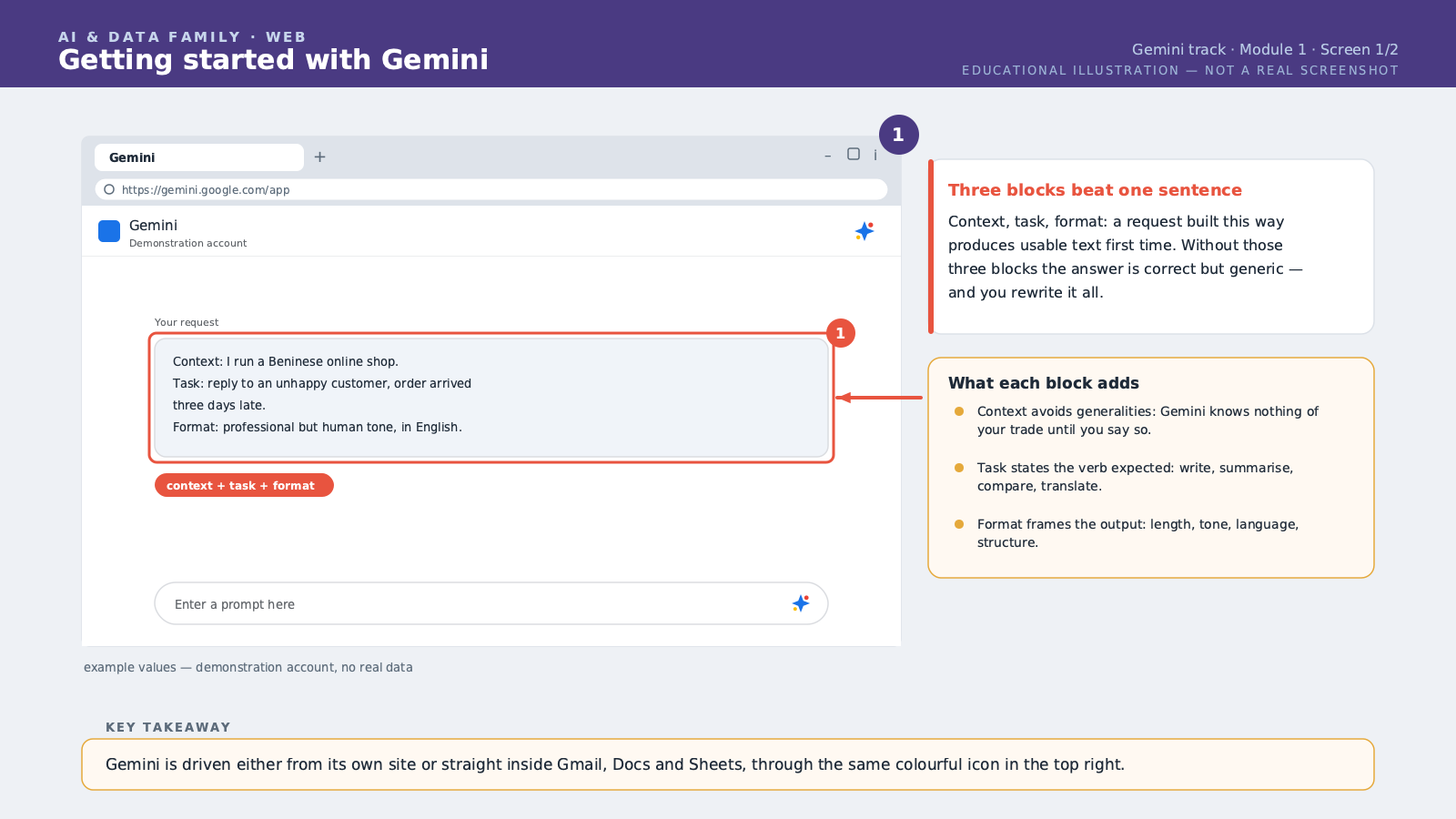
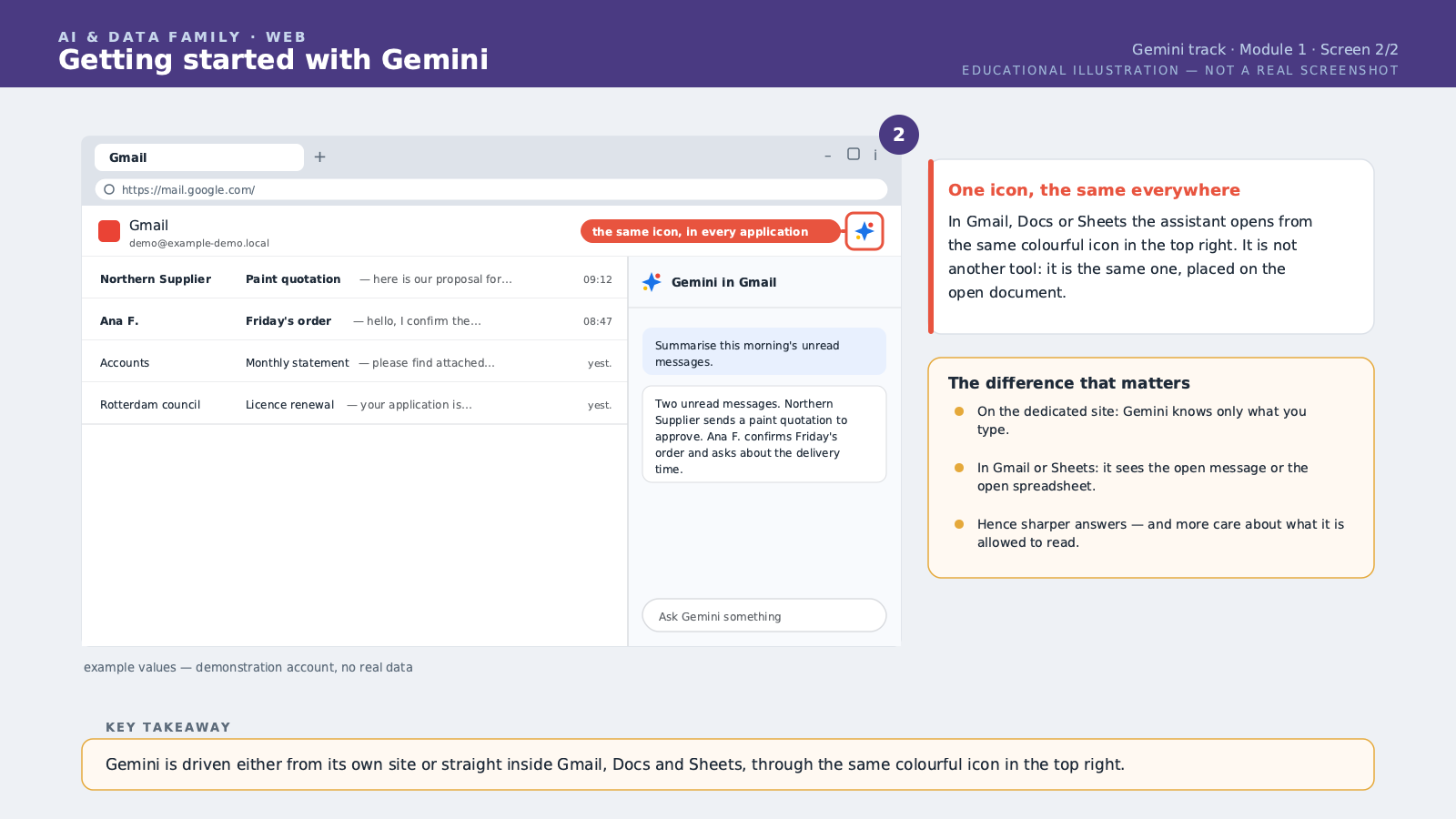
Welcome to this course, "Mastering Gemini." Today you're going to discover Gemini, the AI — Artificial Intelligence — assistant built by Google. What makes it different is that it isn't a separate tool you have to learn on top of everything else: it lives directly inside the Google apps you're probably already using, like Gmail, Google Docs, and Google Sheets. Let's start with the different entry points. The first one is the standalone Gemini application, available on Google's official website or through the mobile app. You simply sign in with your usual Google account, the same one you use for Gmail. No separate sign-up is needed. Once you're in, you'll see a familiar chat interface: a text box at the bottom of the screen where you type what you want, and Gemini replies within seconds. The second entry point, and this is the one that makes Gemini genuinely useful day to day, is the side panel built directly into Gmail, Google Docs, and Google Sheets. When you open one of these tools, you'll notice a small colorful icon, usually in the top right corner of the screen. Clicking it opens a panel on the side, and you can ask Gemini to act directly on the document or email you're working on, without switching windows or copy-pasting text between tools. Before going further, there's one essential idea to understand: the prompt. A prompt is the instruction you give Gemini. The more precise your prompt, the better the response. A good prompt usually contains three elements: the context, meaning your situation; the task, meaning exactly what you want to get; and the format, meaning how you want the answer presented. Let's take an example. If you simply type "write an email," Gemini will guess and produce something very generic. But if you type: "I run a clothing shop in Rotterdam. A customer complained that their order arrived late. Write a professional, empathetic reply, in English, under eight lines, that apologizes and offers a ten percent discount on their next order" — now Gemini has everything it needs to produce a response you can use right away. One important difference from other AI assistants: Gemini can lean on Google Search to verify recent information. We'll go deeper into this in module four. For now, just remember that Gemini isn't only a text generator: when enabled, it can look up up-to-date information online before answering you. Finally, a word on reliability. Like any AI assistant, Gemini can get things wrong, especially on precise figures or very recent events, if it doesn't check online. We'll cover this in detail in the last module of this course. For now, keep one simple rule: the more factual and important a piece of information is for your decision, the more you need to verify it before using it. In this lesson, you learned how to sign in to Gemini with your Google account, how to spot its different entry points — the standalone app and the side panel in Gmail, Docs, and Sheets — and how to structure an effective first prompt using context, task, and format. That's the foundation the rest of this course builds on.
Free preview, no account needed — the rest of this module and the following modules unlock after enrolling.
Convinced? Enroll to unlock the full course.
See pricing