
WhatsApp Business for Your Business
Module 1 · WhatsApp Business Fundamentals · Lesson 1 of 1
WhatsApp Business Fundamentals
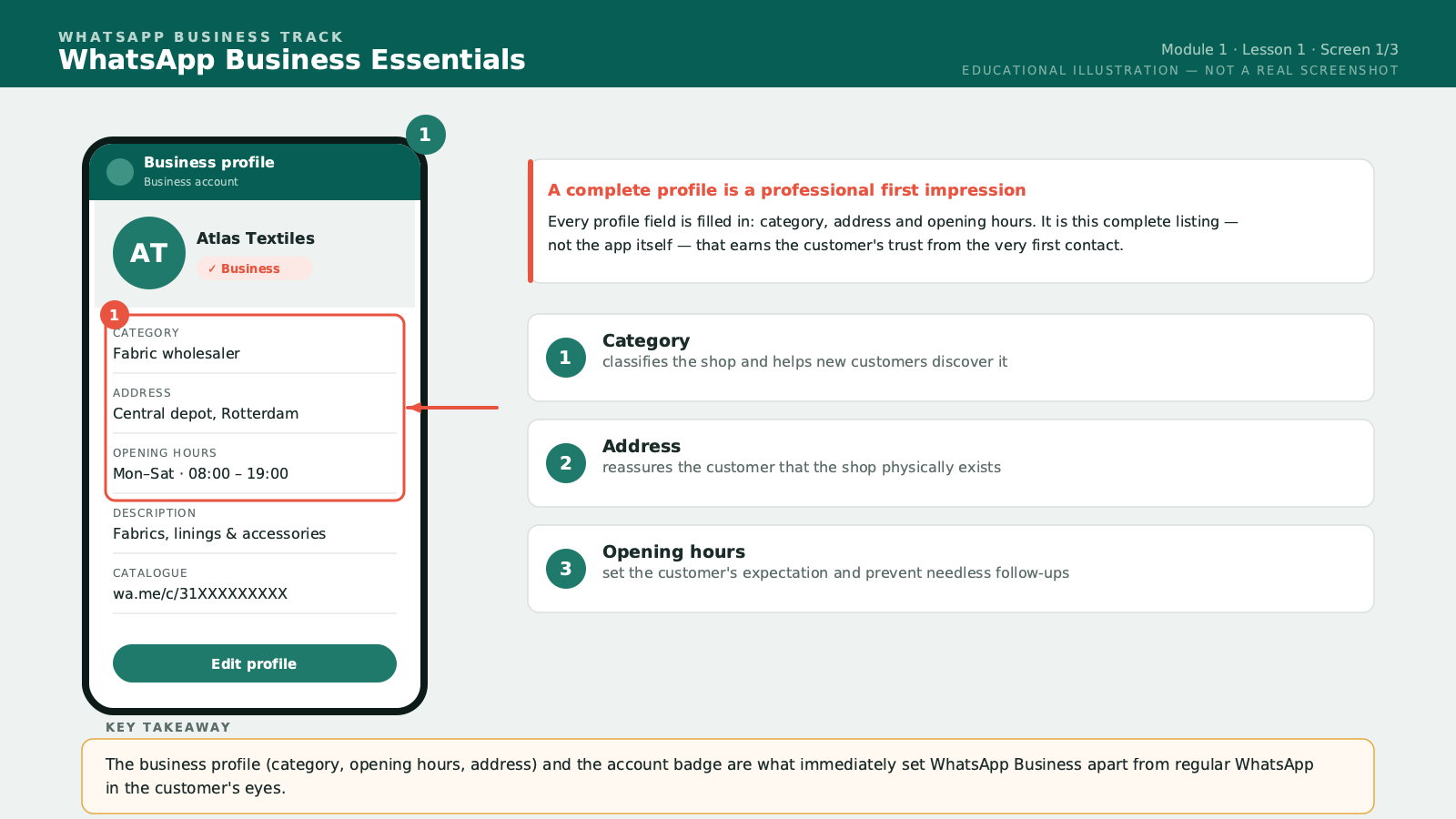
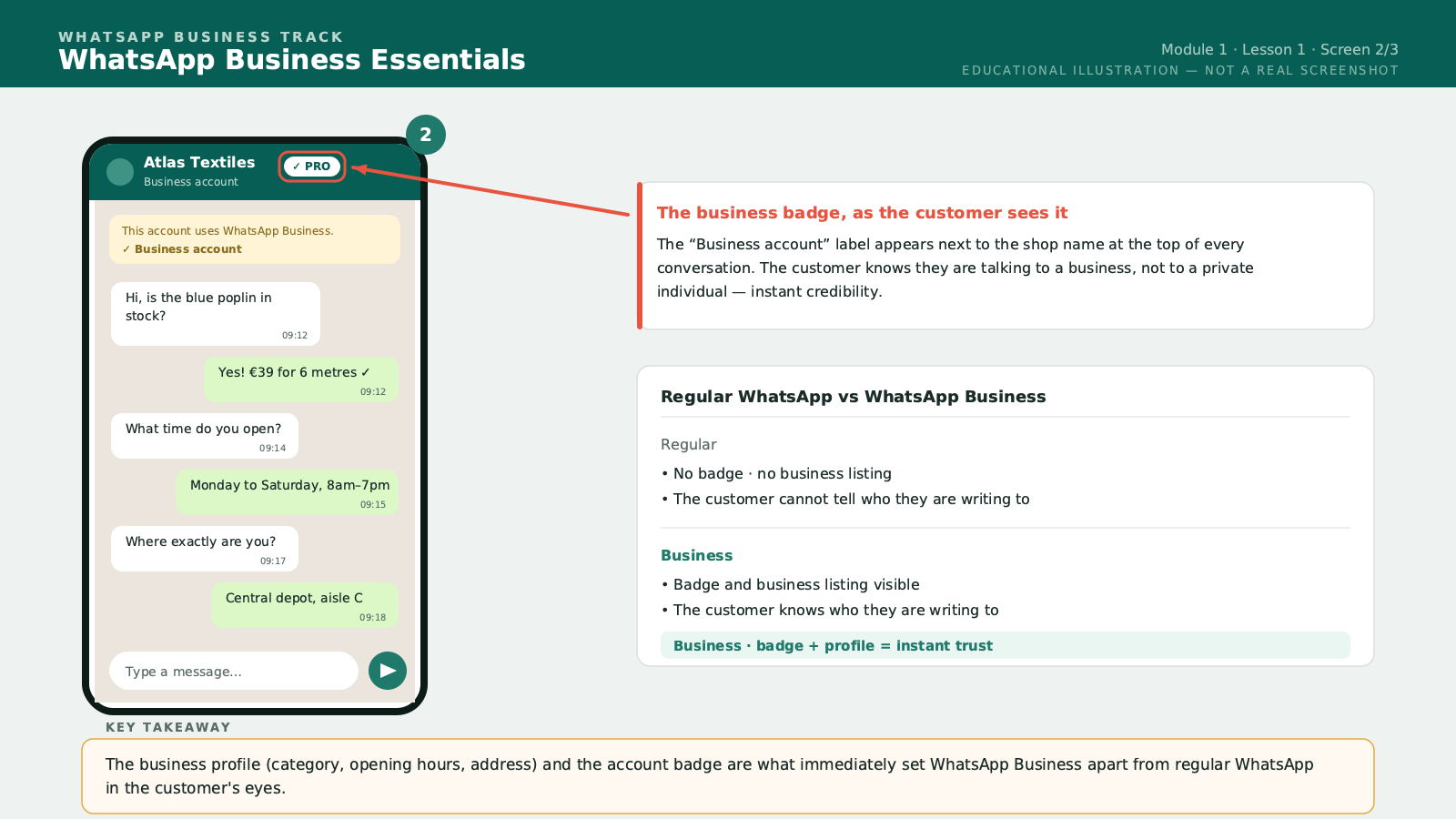
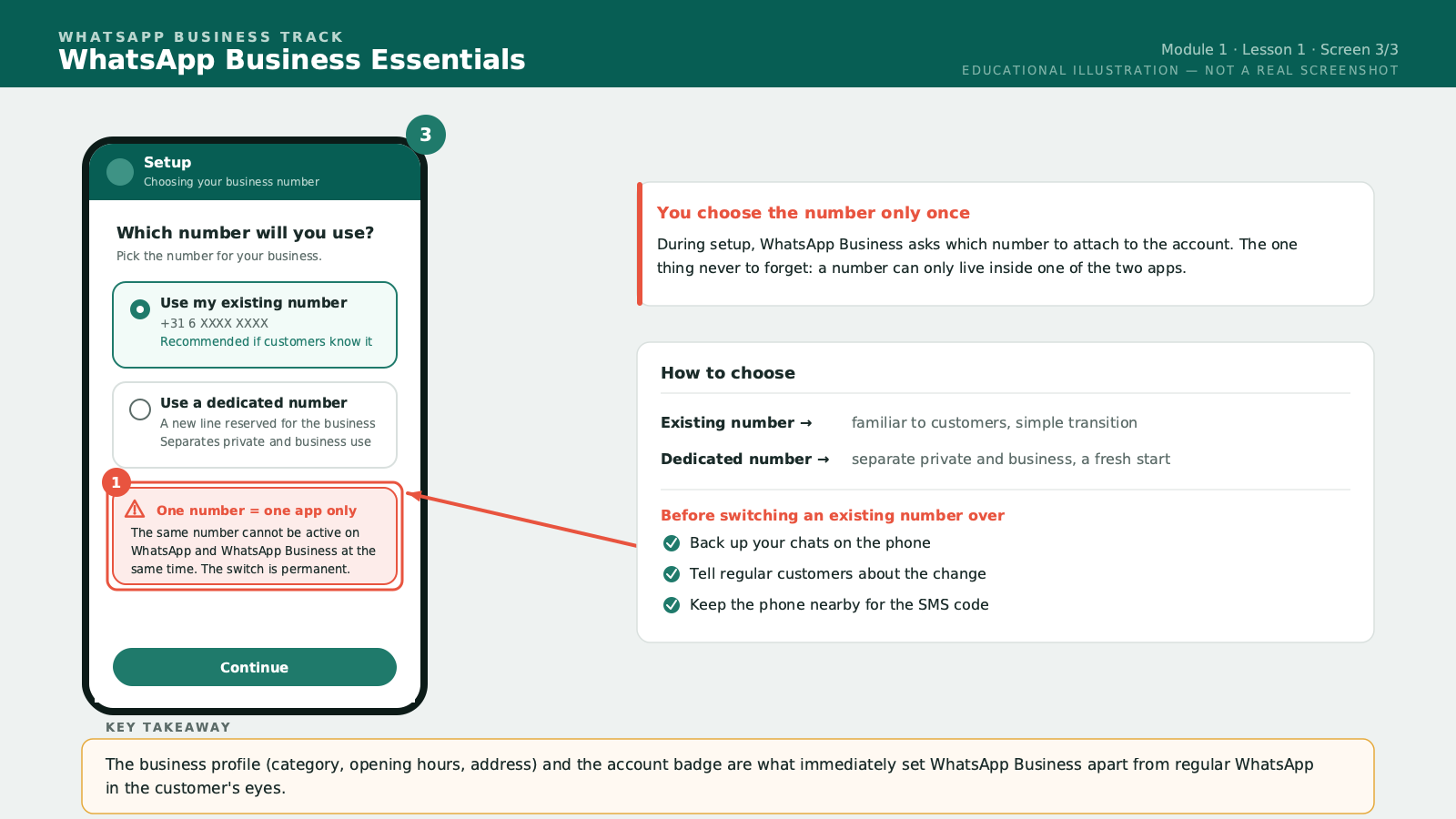
Welcome to the first module of this WhatsApp Business course. Today we lay the groundwork. By the end of this lesson, you will be able to configure a complete WhatsApp Business account, and you will understand clearly what sets it apart from personal WhatsApp. Let's start with a simple question. Why WhatsApp Business, and not just regular WhatsApp? WhatsApp Business is a separate, free application, published by the same company, Meta. Day to day, it works much like regular WhatsApp: you send messages, photos, voice notes, and documents. But it adds several features designed specifically for running a business. First, a professional profile. On regular WhatsApp, your profile is just your name and your photo. On WhatsApp Business, you can add your business name, a description of your activity, your address, your opening hours, and a category describing your sector — for example "clothing store" or "restaurant." Next, a badge. Verified WhatsApp Business accounts display a small badge that tells customers they are talking to a real business, not an individual. Third difference: the catalogue. We'll cover it in detail in Module 2, but for now, remember that WhatsApp Business lets you display your products or services directly inside the app, with a photo, price, and description — a bit like a small built-in storefront. Fourth difference: automated messages. Greeting message, away message, quick replies — we'll go through all of that in Module 3. Fifth difference: statistics. WhatsApp Business shows you how many messages you have sent, delivered, and had read. It sounds simple, but it is information regular WhatsApp never gives you. Now let's talk about an important practical point: the phone number. WhatsApp Business runs on a phone number, exactly like regular WhatsApp. But the same number cannot be used on both apps at the same time. If you already use regular WhatsApp on your personal number, you have two options. Option one: migrate that number entirely to WhatsApp Business, and lose access to regular WhatsApp on it. Option two, often the recommended one: use a different number for WhatsApp Business, dedicated to your business. This keeps a clear boundary between your personal life and your professional activity. An important tip if you migrate a number that already has history: WhatsApp offers a transfer feature that keeps your contacts and part of your conversation history. Before any migration, always back up your data. You never want to lose the conversation history with loyal customers. Now let's walk through configuring the professional profile, step by step. One: the business name. Choose something clear and recognizable — the name your customers already use to refer to you. Avoid overly long names or abbreviations nobody understands. Two: the profile photo. Use your logo if you have one, or a sharp photo of your shop or your products. Avoid personal photos unrelated to the business. Three: the description. In one or two sentences, say what you do and for whom. For example: "Quality wax and bazin fabrics, based in Nairobi. Delivery available across Nairobi and the surrounding area." Four: the address. Even without a physical shop, at least state the city or area you operate in — it reassures customers about your real location. Five: opening hours. State clearly when you're available to reply. We'll come back to this in Module 3, because it directly feeds into configuring your away message. Six: the business category. WhatsApp Business offers a list of predefined categories. Choose the one that best matches your activity — it also helps customers searching for your type of business. Before we close this lesson, a word of caution. The number you use for WhatsApp Business must be a number you are authorized to use for this activity. If you're setting up an account on behalf of a client, as a freelancer for example, always make sure there is a clear agreement about who actually owns the number and the account. We'll come back to this caution point in more detail in Module 7. That's it for this first lesson. Now move on to the hands-on exercise to put it all into practice.
Free preview, no account needed — the rest of this module and the following modules unlock after enrolling.
Convinced? Enroll to unlock the full course.
See pricing